POS Standard
⚠️ Important Notice:
This guide applies only to the POS Terminal Standard Models. If you are uncertain about your device model, please contact Volcora Support before proceeding. Volcora will not be held responsible for any consequences arising from improper configurations.
To fill custom motherboard serial number, you will need an empty USB drive to make configuration.
- Plug in USB drive
- Download the attached zip file (MBSerial), open the Rufus application
- Follow the video instruction to format the USB drive. Boot selection: FreeDOS
- Once completed, copy and paste all files in BS+UUID folder to root folder of the USB drive.
- Restart the terminal, and press F11 at startup screen to enter boot selection screen
- Select USB drive, this will enter the board configuration screen
- Enter "BS", it will then prompt to enter custom serial number, press Enter to confirm
- If you would like to change UUID, Enter "SU", and follow the same prompt.
- Restart the terminal once completed
Video Demonstration:
_______________________________________
POS PRO
⚠️ Important Notice:
This guide applies only to the POS Terminal Pro Models. If you are uncertain about your device model, please contact Volcora Support before proceeding. Volcora will not be held responsible for any consequences arising from improper configurations.
1. Extract the `flash SN for windows_POSPro.zip` file to the desktop.
2. Locate the `SN.bat` file and run it as administrator. 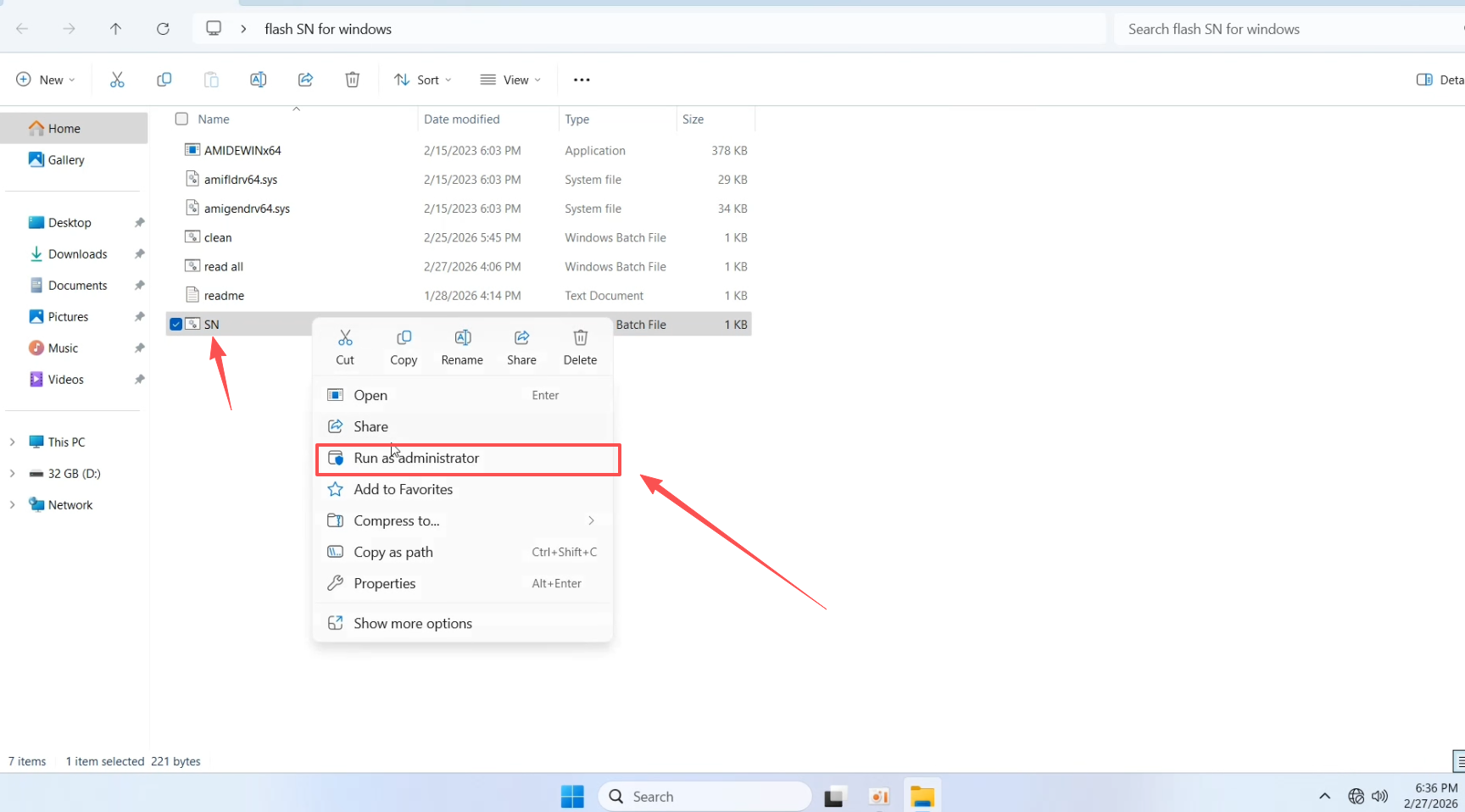
3. Enter the SN code to be written in the terminal and press Enter. When **“Press any key to continue....”** appears, press Enter again.
4. Shut down the device, disconnect the power, then restart. At booting, press the **Delete** key on the keyboard to enter boot setup and check if the SN has been written successfully. (The SN.bat script should edit Baseboard Serial, BIOS Serial and UUID)
Was this article helpful?
That’s Great!
Thank you for your feedback
Sorry! We couldn't be helpful
Thank you for your feedback
Feedback sent
We appreciate your effort and will try to fix the article