IMPORTANT: Please keep terminal ON at all times (24/7), as our team may remotely login during night hours.
Part 1: Install AnyDesk
Open a web browser on the POS or computer
Go to https://anydesk.com
Click Download AnyDesk
Once downloaded, open the AnyDesk file
Click Install AnyDesk on this device (recommended for unattended access)
Complete the installation
⚠️ Do not use “Run Only” mode if unattended access is required.
Part 2: Enable Unattended Access (Password Login)
Open AnyDesk
Click the ☰ menu (top right) → Settings
Go to Access -> Unlock
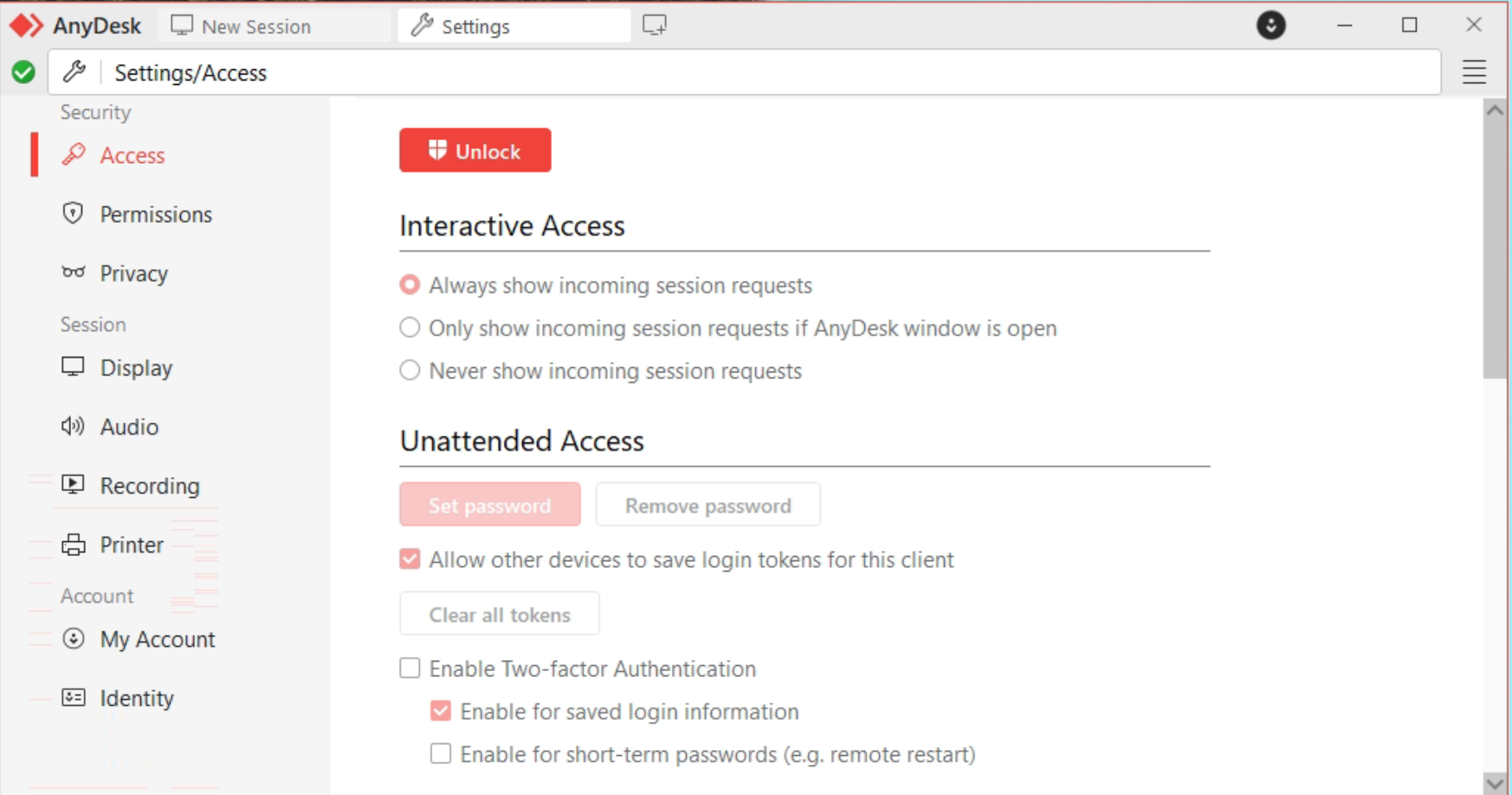
Enable Unattended Access
Turn ON Enable Unattended Access
Set a password: "Volcora123!"
Confirm the password
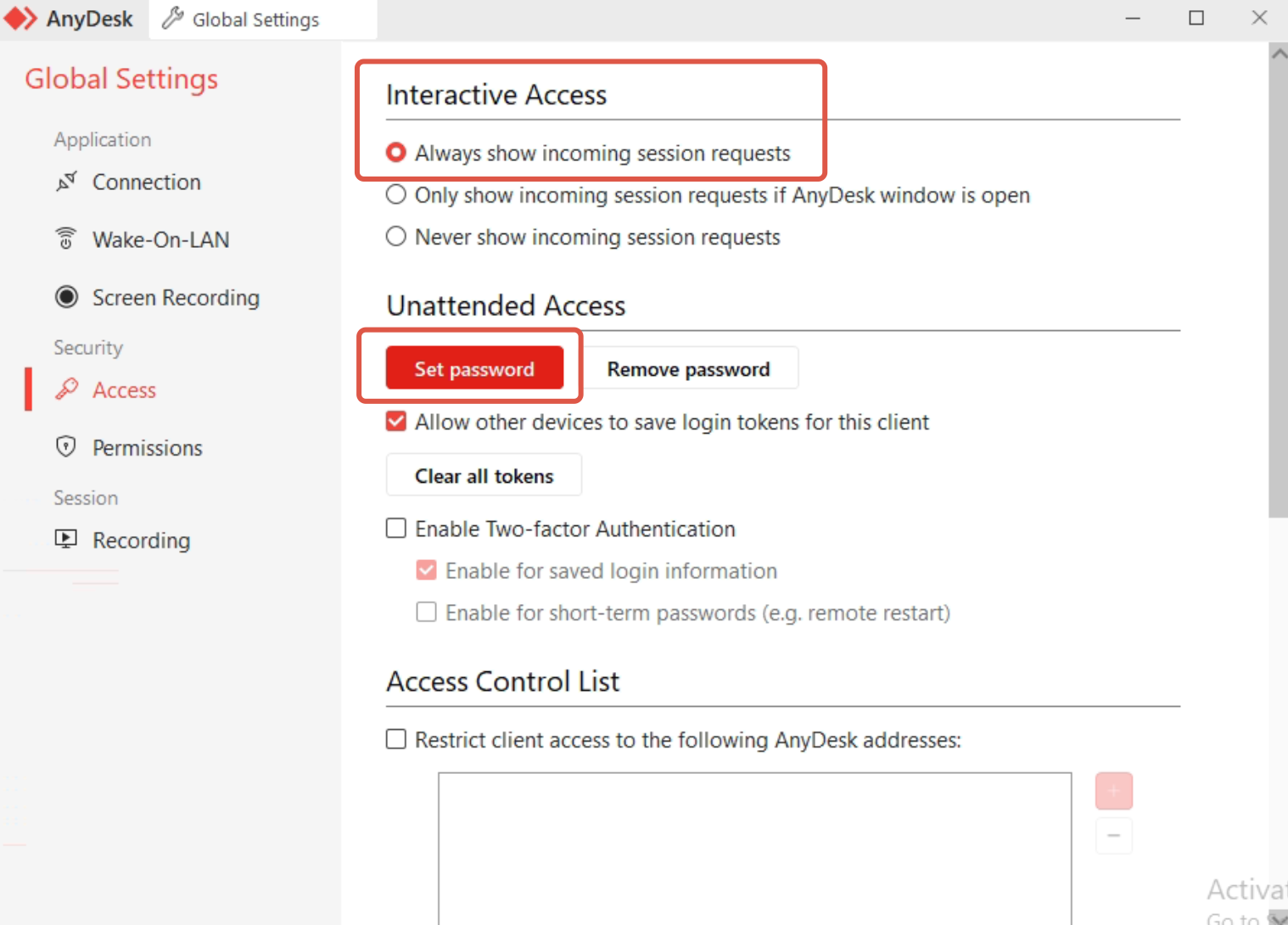
This password will be used for future remote access without user approval.
Part 3: Configure Security Permissions (Important)
Still under Settings → Permissions:
Access Control
Under Unattended Access Permissions, ensure the following are enabled:
✅ Keyboard & Mouse Control
✅ Access Clipboard
✅ Access Files
✅ Control Device
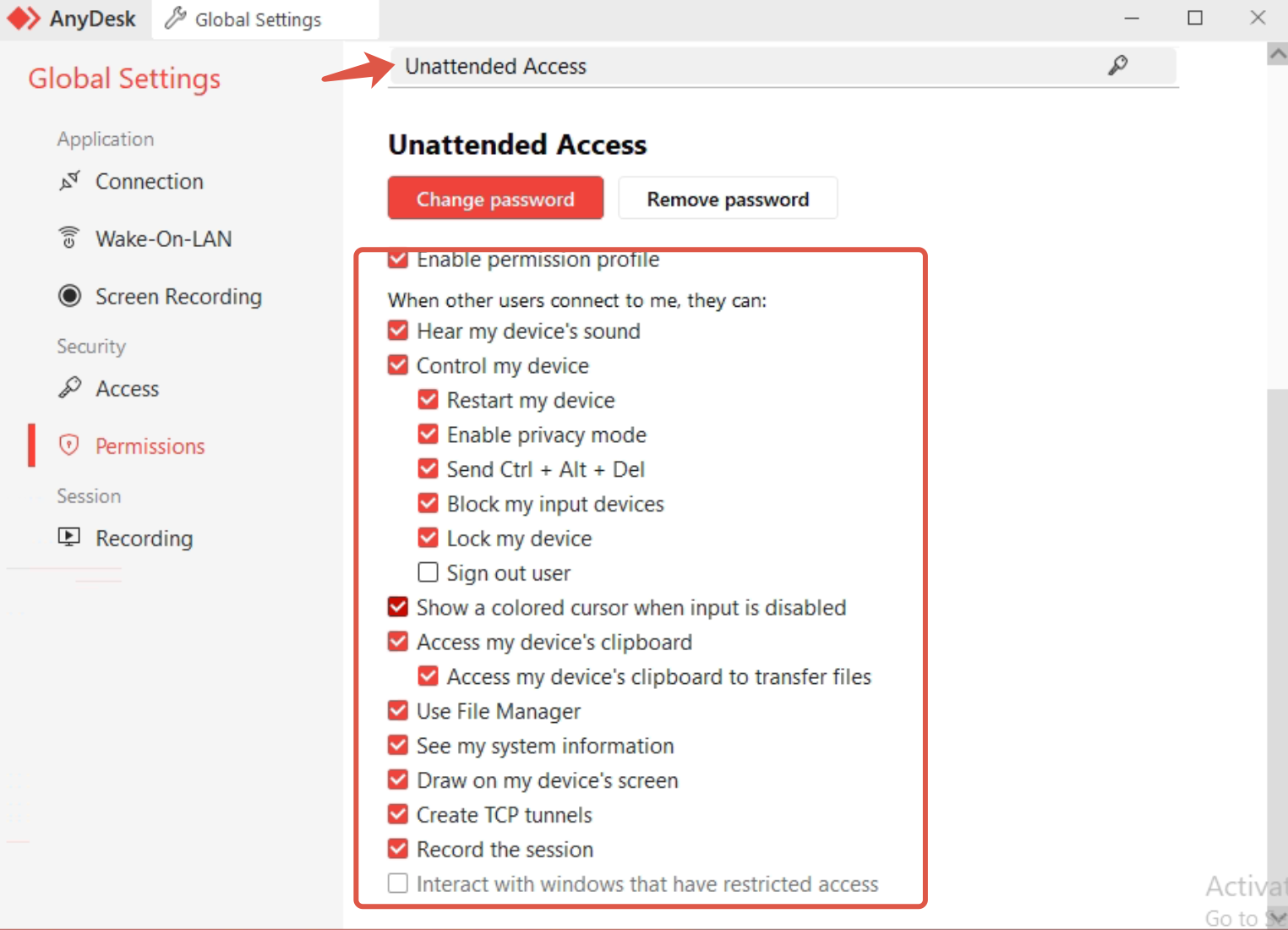
(Optional but recommended for support)
⬜ Restart device
⬜ Lock device on disconnect
Disable Confirmation Prompts
Make sure “Always prompt for incoming connections” is OFF
Part 4: Save the AnyDesk Address
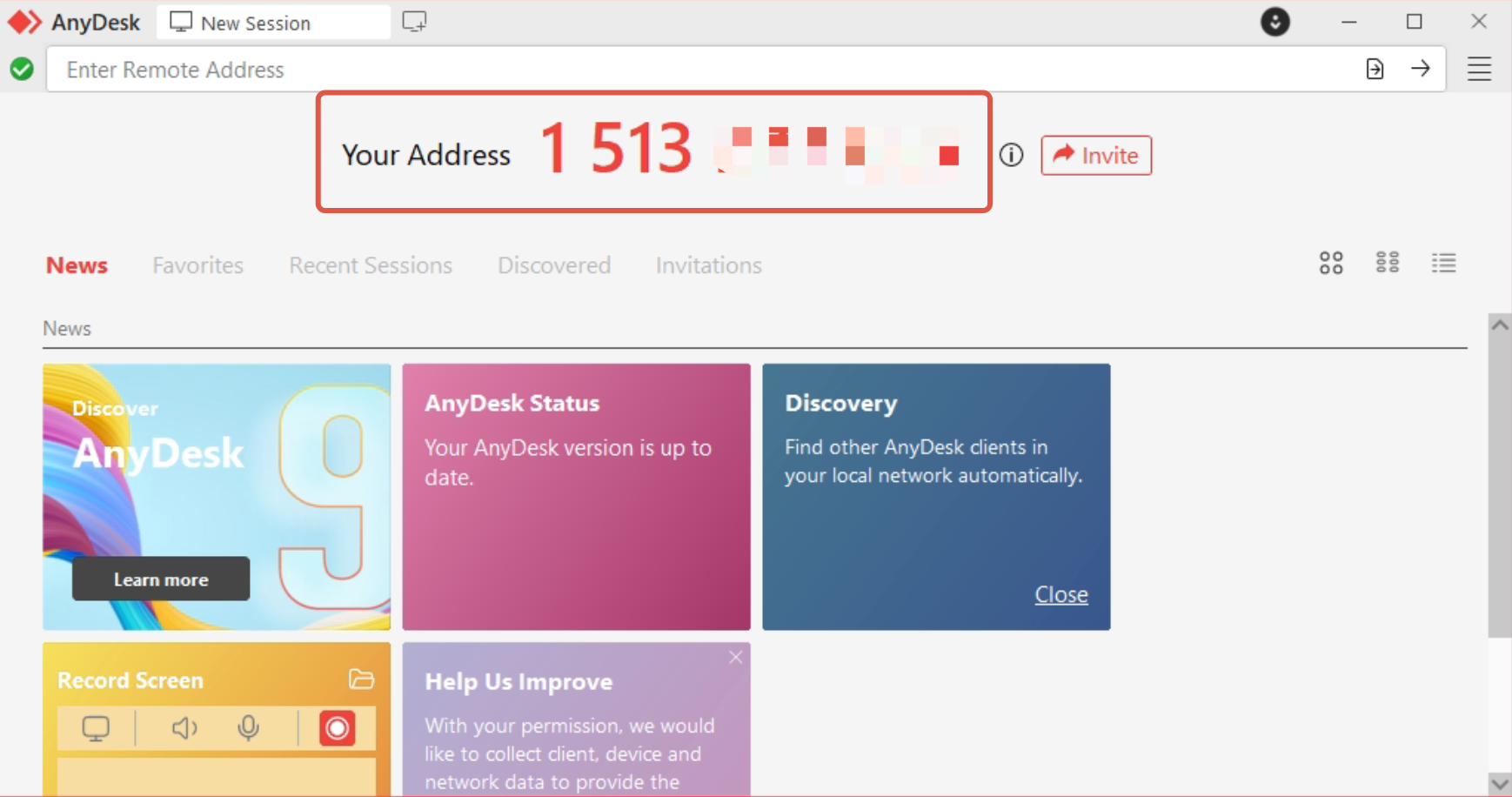
On the AnyDesk main screen, locate “Your Address”
Copy the AnyDesk Address / ID
Share the following securely:
AnyDesk ID
Unattended access password
? Do NOT send passwords in plain text email if possible. Use secure messaging.
Part 5: (Recommended) Start AnyDesk Automatically
To ensure access after reboot:
Press Ctrl + Shift + Esc
Or right-click the Taskbar → Task Manager
If Task Manager opens in compact mode, click More details
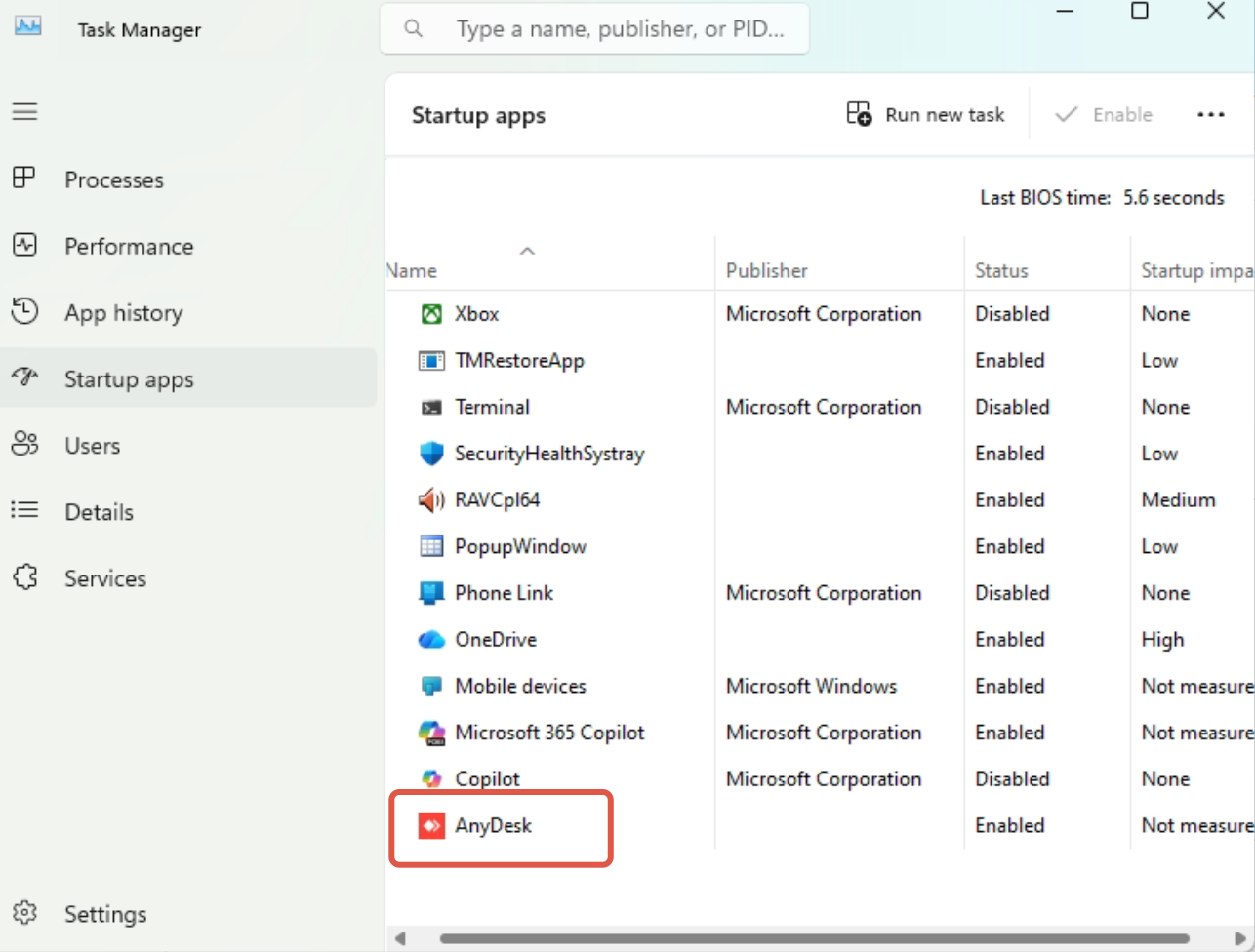
Click the Startup (or Startup apps) tab
Look for AnyDesk
Status should be Enabled
Quick Verification Test
Restart the device
From another computer:
Open AnyDesk
Enter the AnyDesk ID
Select Password Login
Confirm successful connection without user interaction
Common Issues & Fixes
Can’t connect after reboot
Check AnyDesk is installed (not run-only)
Verify AnyDesk service is running
Confirm password was saved
Black screen
Check display drivers
Disable hardware acceleration in AnyDesk settings
Ensure Windows user session is active
Was this article helpful?
That’s Great!
Thank you for your feedback
Sorry! We couldn't be helpful
Thank you for your feedback
Feedback sent
We appreciate your effort and will try to fix the article