[This page is constantly being updated to provide new solutions]
If you encounter issues with software detecting and limiting usage based on SID or device id, you may follow the below instructions. (NOTE: This is a temporary solution. All of our terminals will be reconfigured with unique SID and device ID after Q2-Q3 2026):
STOP! Before you begin, first find out which id is required to be unique, is it SID, device id, WIM or something else?
- If WIM, refer to this article: https://help.volcora.com/en/support/solutions/articles/73000665878-how-to-set-wmi-uniqueness-with-cpu-processor-disk-and-bios-serial-number
- If Device ID only, refer to this article:https://help.volcora.com/en/support/solutions/articles/73000664767-change-device-id-on-volcora-terminals
- If SID or SID+Device ID, then proceed with one of the following:
- Change the SID using Third Party Tool: If you prefer not to re-image the machines, you can use tools like NewSID, or SIDCHG Utility (https://www.stratesave.com/html/sidchg.html), which is designed to change the SID of a Windows installation. However, be cautious with third-party tools, as they may not always be supported or could lead to other issues. It's essential to ensure that any tool you use is compatible with Windows 11.
- Use Sysprep: You will need to run Sysprep on each machine to generalize it, which will remove the SID and allow you to create a new one upon the next boot. This process will require some setup and may involve reconfiguring some settings.
- Re-image the machines: If the above options seem too cumbersome or risky, re-imaging the machines using Sysprep from the start would be the most reliable solution to ensure that each system has a unique SID.
1. SIDCHG Utility
Easiest way is to use the utility tool and change the SID downloadable here: https://www.stratesave.com/html/sidchg.html
Follow the instructions carefully from the site. See our instructions here: https://help.volcora.com/en/support/solutions/articles/73000665758-sidchg-utility-from-stratesave
Article: https://help.volcora.com/support/solutions/articles/73000665758-sidchg-utility-from-stratesave
2. Sysprep Method (keyboard and mouse needed):
If you choose to do sysprep, please follow the below (Back up important files before performing):
On each affected terminal:
Open Command Prompt as Administrator
Run:
Choose:
Enter System Out-of-Box Experience (OOBE)
✔ Generalize
Shutdown
After shutdown, power on and complete Windows setup.
This regenerates:
Windows Device ID
Machine SID
Hardware hash mappings
Internal GUIDs used by apps
After this, Windows SID will be unique.
**Note: in cases where you get an error like this below:
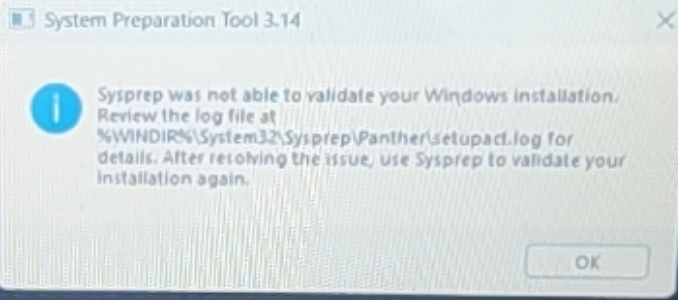
Option 1:
Open elevated PowerShell: run the scripts below:
then
Run Sysprep.exe again.
Option 2:
Run a full PC Reset and then run Sysprep again. This will fix most issues.
---------
The system will enter OOBE setup, where it will ask for the username, keyboard layout, network connections etc.
In most cases, you may need to use a mouse and keyboard to continue with the setup and calibrate the touchscreen after after completing. https://help.volcora.com/support/solutions/articles/73000637954-how-to-calibrate-your-terminal-touchscreen-
For POS Pro
1. You may need additional drivers for touchscreen configuration which can be downloaded below:
https://help.volcora.com/en/support/solutions/articles/73000664791-pos-terminal-pro-windows-11-drivers-intel-i5-11th-gen. or just the Intel Graphics Software: https://apps.microsoft.com/detail/9p8k5g2mww6z?hl=en-US&gl=US
2. Then follow the video if flipped CDS: https://help.volcora.com/en/support/solutions/articles/73000664695-pos-pro-only-touch-screen-calibration-with-flipped-cds
(Fully tested sysprep setup for dual screen POS Terminal Pro would be: Reset PC -> Sysprep Generalize -> Install Intel Graphics Software -> Calibrate orientations -> Switch to extended display -> use Intel Graphics software to Stretch CDS -> Use Tablet PC Settings to calibrate the two screens)
1. Driver are below: https://help.volcora.com/en/support/solutions/articles/73000665355--pos-standard-series-only-windows-11-drivers
Was this article helpful?
That’s Great!
Thank you for your feedback
Sorry! We couldn't be helpful
Thank you for your feedback
Feedback sent
We appreciate your effort and will try to fix the article